How to check if your PC can run it
Getting your specs into idxdiag takes about two minutes. Windows already carries a free tool called DxDiag that lists every part in your PC. Run it, save the file, drop it here, and you get a clear verdict on whether your machine can run any game, app, or local AI model. Here are the five steps.
-
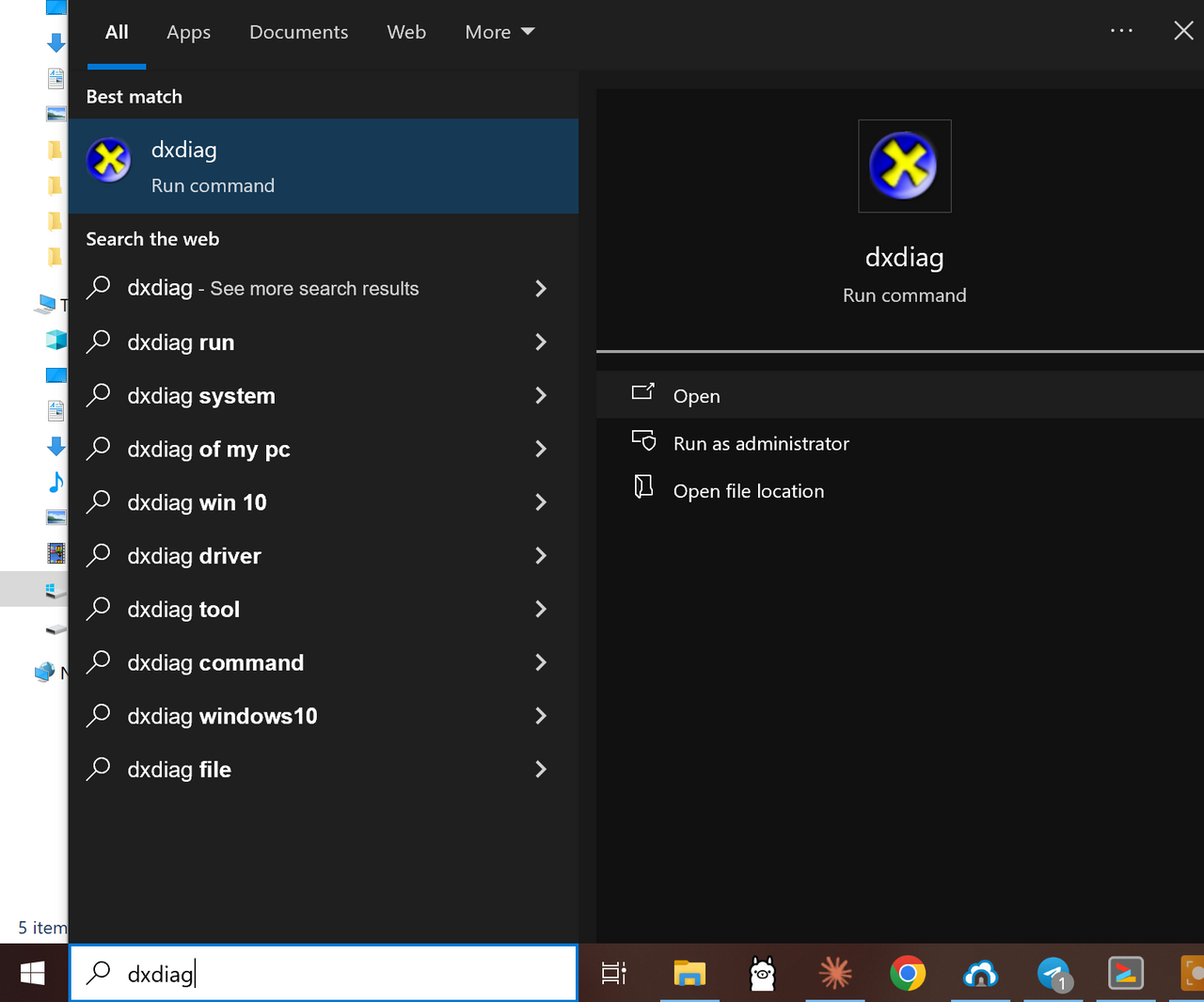
1 Open Windows search and type dxdiag
Click the Windows search box, type dxdiag, and press Enter. The best match opens the DirectX Diagnostic Tool.
-
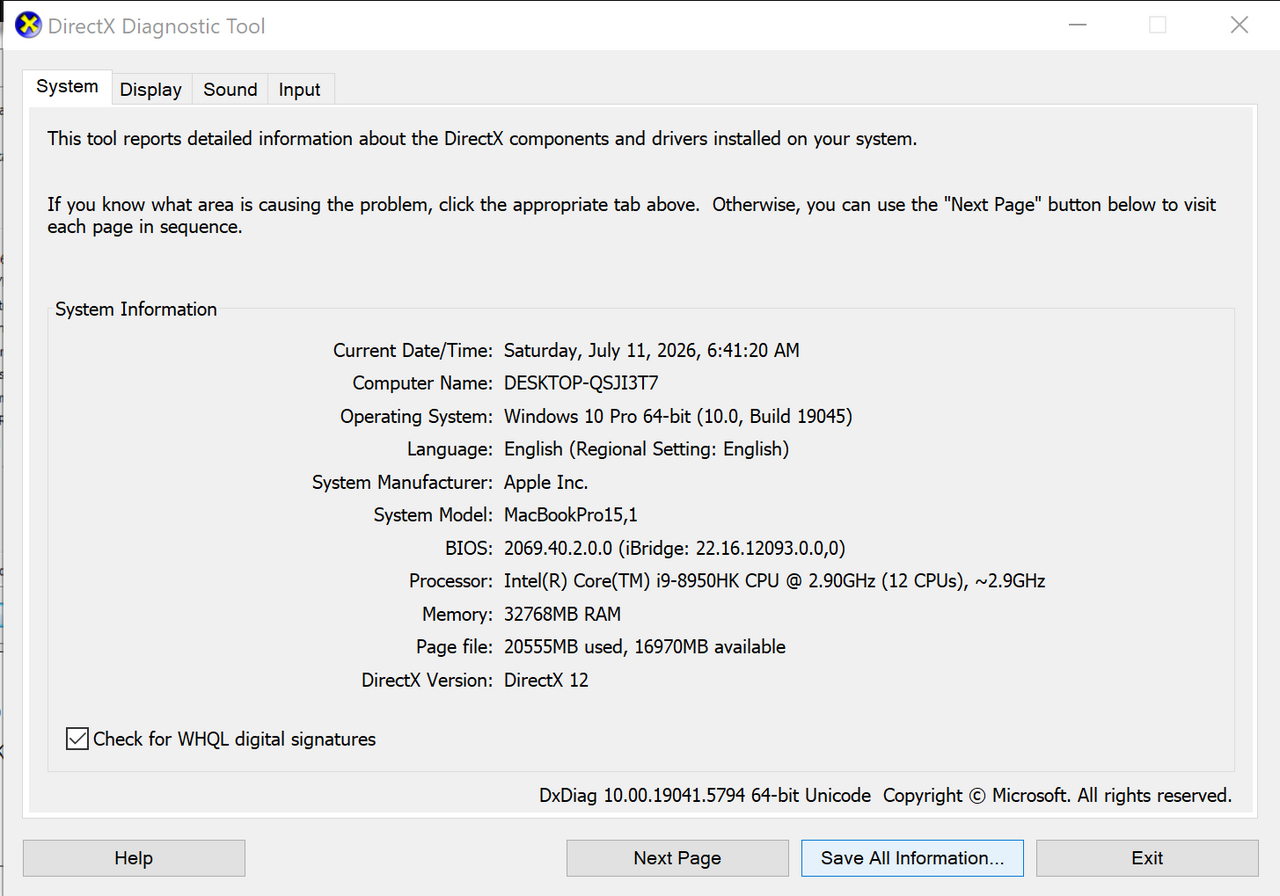
2 Let the tool read your hardware
The DirectX Diagnostic Tool opens on the System tab and reads your processor, memory, and DirectX version. No clicks needed here.
-
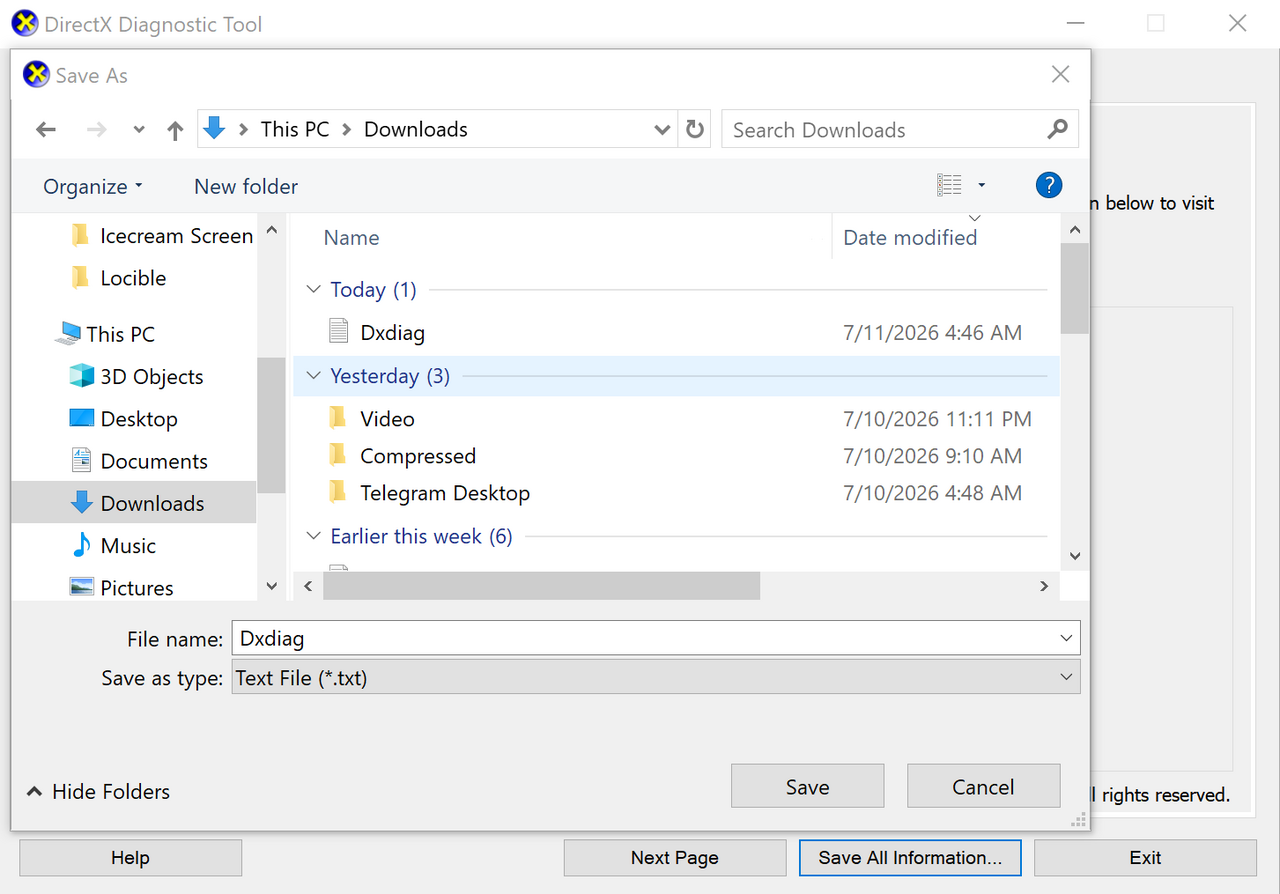
3 Save the report as Dxdiag.txt
Click Save All Information at the bottom, then save the file as Dxdiag.txt. The Downloads folder is a fine place for it.
-
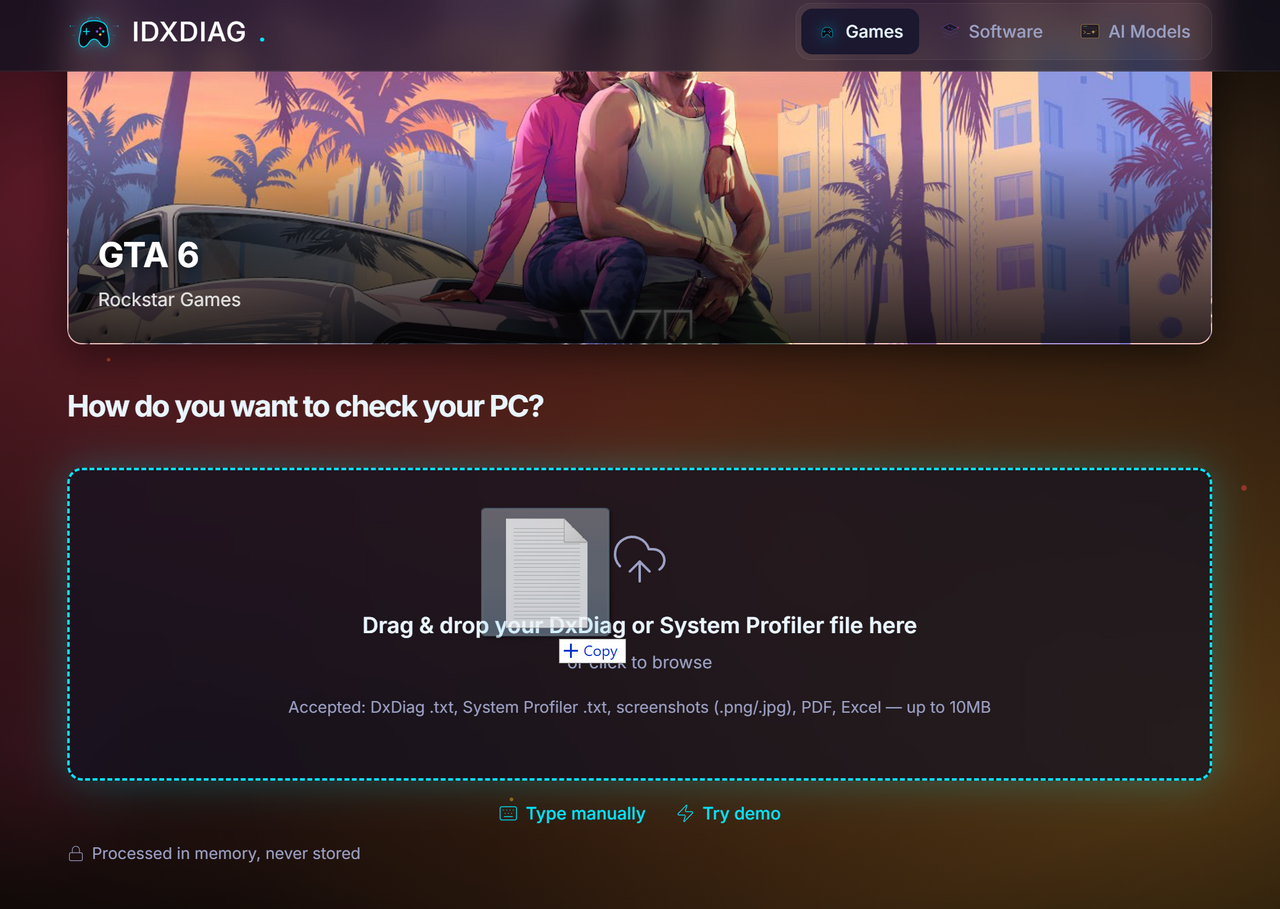
4 Drag the file into idxdiag
Come back to idxdiag and drag the saved file into the drop zone. You can also click the zone to browse for it.
-
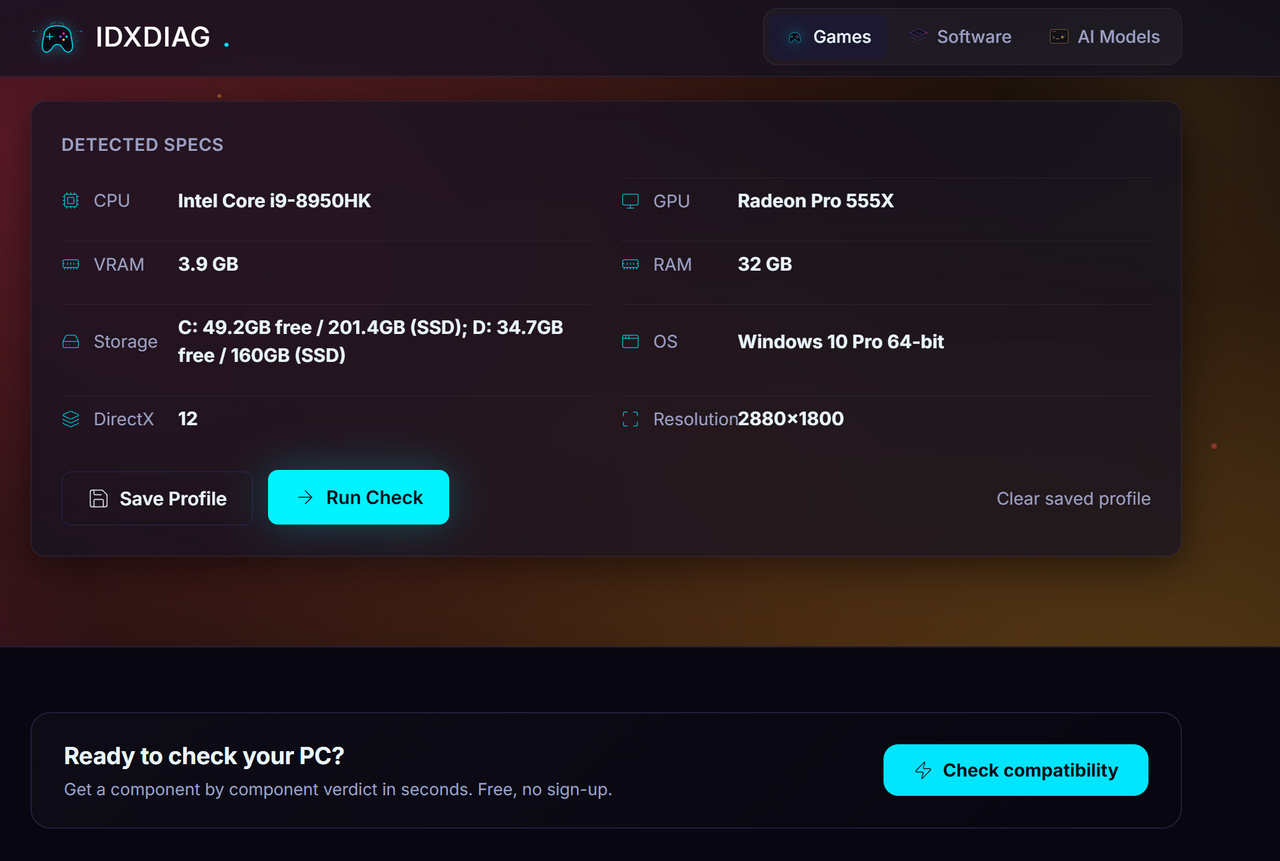
5 See your specs and run the check
idxdiag reads your CPU, GPU, VRAM, RAM, and storage. Click Run Check for a component by component verdict on your chosen title.
What is a DxDiag file
DxDiag is short for the DirectX Diagnostic Tool, a free program that is built into every copy of Windows. When you run it and save the report, Windows writes a single plain text file that lists your CPU, GPU, video memory, system memory, storage, and DirectX version. That is exactly the information idxdiag needs to judge whether your PC can run a title.
The file holds hardware facts only. It carries no passwords, no browsing history, and no personal documents, so it is safe to share. idxdiag reads the report in memory to work out your specs and never stores it on our servers. When the check finishes, the data is gone.
On a Mac there is no DxDiag. Instead, open System Information, save a System Profiler report, and upload that file. idxdiag reads it the same way and gives you the same clear verdict.
Frequently asked questions
Is DxDiag safe to run?
Yes. DxDiag is a free tool that Microsoft ships inside Windows. It only reads your hardware and writes a plain text summary. It installs nothing and changes nothing on your PC.
Does idxdiag store my file?
No. Your report is read in memory to work out your specs and is never written to disk. We do not keep the file or sell your data.
What if I am on a Mac or a laptop?
On a Mac, open System Information, save a System Profiler report, and upload that instead. Laptops work the same way as desktops. We score laptop parts against their own benchmark entries where we have them.
Can I type my specs manually instead?
Yes. If you already know your CPU, GPU, and memory, choose the manual option and enter them. Uploading a DxDiag is just faster and avoids typos.
Why do you use DxDiag instead of asking for my parts?
A DxDiag lists the exact model of every part in one file, so there is no guessing. That gives a far more accurate verdict than a part name typed from memory.
How accurate are the verdicts?
Verdicts compare your parts against published requirements using benchmark tables, so the readiness score is deterministic rather than a guess. Where a part is missing from our tables we label the result as an estimate.